Switching Decks
The program allows you to switch decks by choosing an item off the My Decks list on the main menu. The program comes supplied with two custom decks: the Untraditional Tarot and the Imperatrix Tarot Redux (or the Aeclectic or Tarot of Dreams decks if you chose those installation packages). For more information on how to acquire new decks see the Deck Exchange, for help with creating your own decks see the My Decks page.
Important: Until you register the program it only lets you see three decks in the My Decks list.
When you have used more than one deck in the current session, one or two navigation arrows will appear at the bottom the deck, facing left and right. These arrows allows you to navigate backwards and forwards through the decks you have used.
Switching Decks with Card Out
What happens when you switch between decks depends on whether there are cards out. If there are cards out, the program assumes you are doing a comparative reading. Therefore it tries as far as possible not to disturb the cards. On the other hand if all the cards are still in the deck the program shuffles the cards, applying as it does so any percentage of reversals that the user may have indicated for that deck.
The following describes what happens when you switch decks while there are cards out, i.e. switching for comparative readings:
Switching to a Deck of the Same Size: The program changes decks without shuffling or changing anything.
Switching To A Bigger Deck: The extra cards are shuffled and added at the bottom of the deck.
Switching To A Smaller Deck: If there are any cards out of the deck which are not part of the new deck the program cannot offer a comparative reading. It asks the user whether they want to continue switching, in which case it collects all the cards. On the other hand if all the cards which are out have low index values and therefore exist in both decks then they are not disturbed - the program goes through the rest of the deck removing the cards that are not part of the new one but leaving everything else alone.
Other Ways of Switching Decks
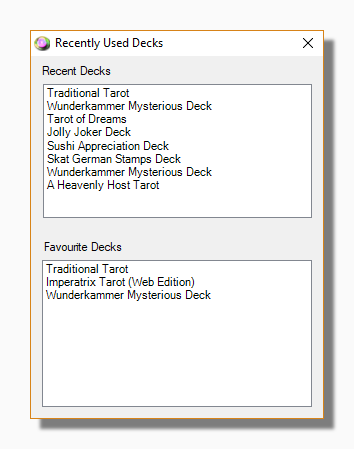
You can also switch decks by using the Recent Decks item on the main menu. This offers you two lists of decks to choose from. The first list shows the last ten decks that you have used, and the second list shows your favourite decks. Double-click on any item in the list to switch to that deck. If a deck has been moved or deleted the corresponding item will show in red. Favourite Decks can be established using the Keys tab of the Options form.
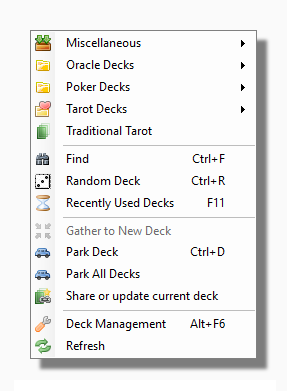
You can also launch a randomly selected deck from your collection by using the Random Deck item on the My Decks menu or pressing the Control+R key combination.
Tip: In various program windows, for example when managing your decks, editing a collection or comparing cards you may see a list of decks. Most often you can switch directly to a deck by double clicking on the deck's name in the list.
Tip: The program also allows you to launch new decks besides the one you are currently using if you want to have two or more decks open at the same time.